CopyPouch Pocket lets you save text on iPhone or iPad while seamlessly checking copy history from your Mac.
Save a local clip
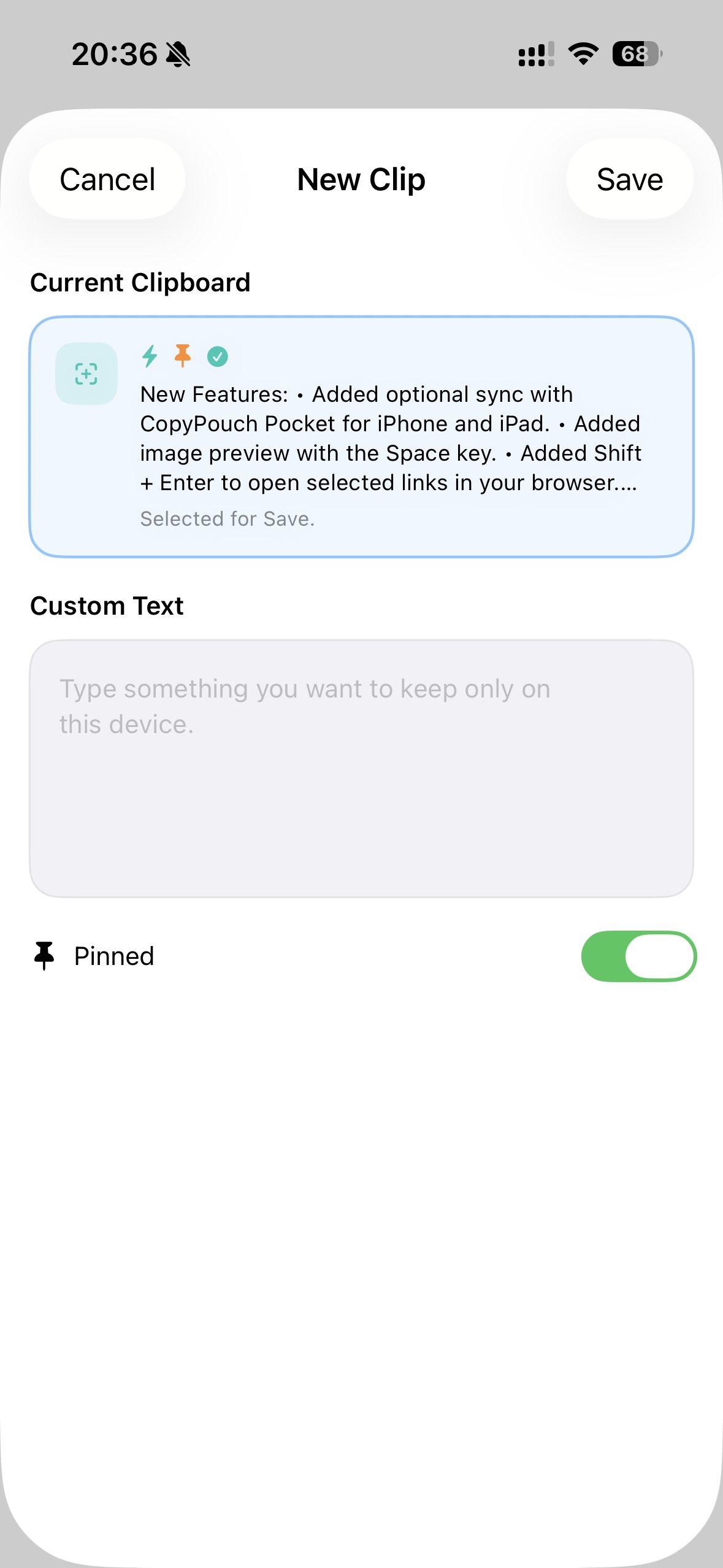
- Tap + on the main screen to open New Clip.
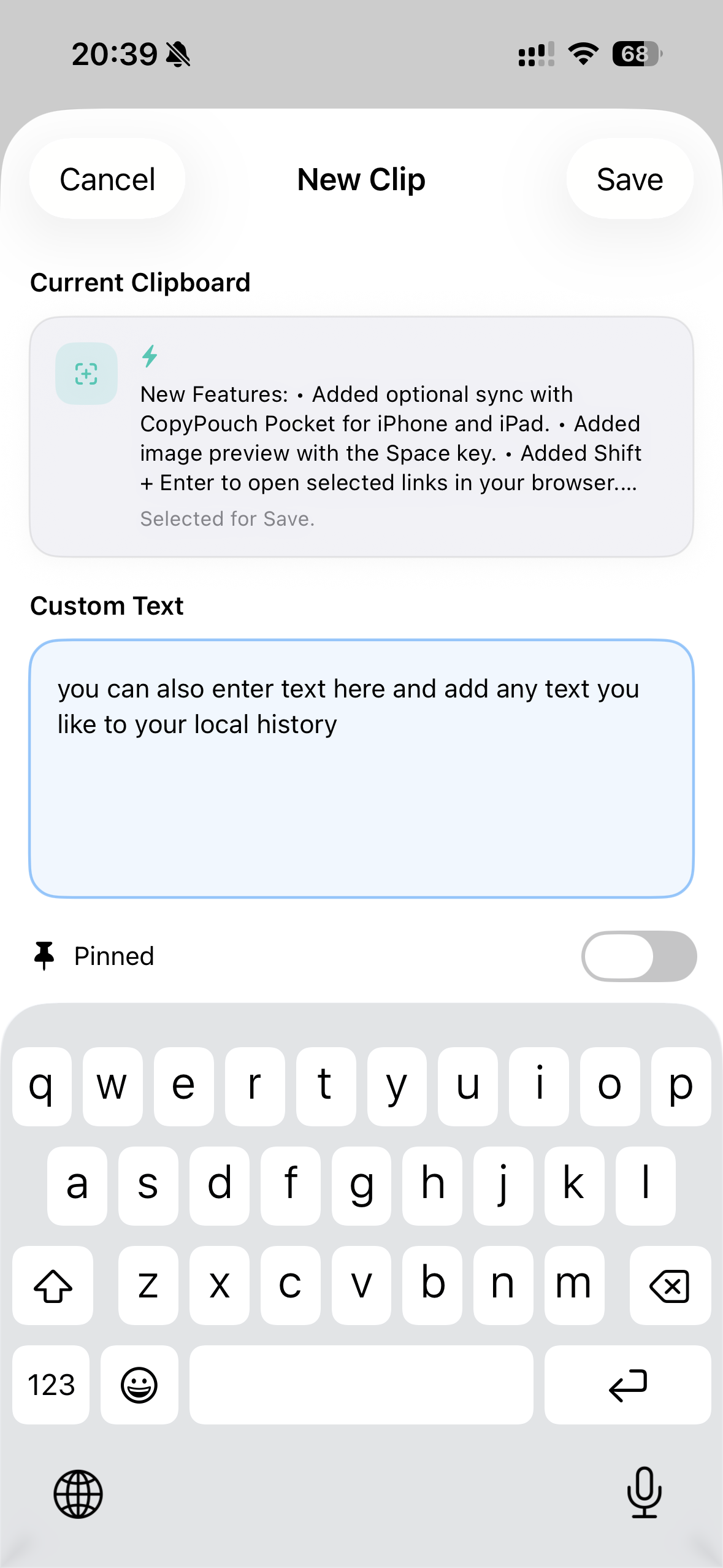
- Choose Current Clipboard, or type your own text in Custom Text.
- Turn on Pinned if you want to keep it close at hand.
- Tap Save to store it on this device.
Local clips can be filtered from Source with Local. You can also delete all local clips from Settings.
Sync history from your Mac
- On your Mac, open CopyPouch Settings and turn on Sync with CopyPouch Pocket.
- Keep iCloud Keychain turned on for both your Mac and your iPhone or iPad.
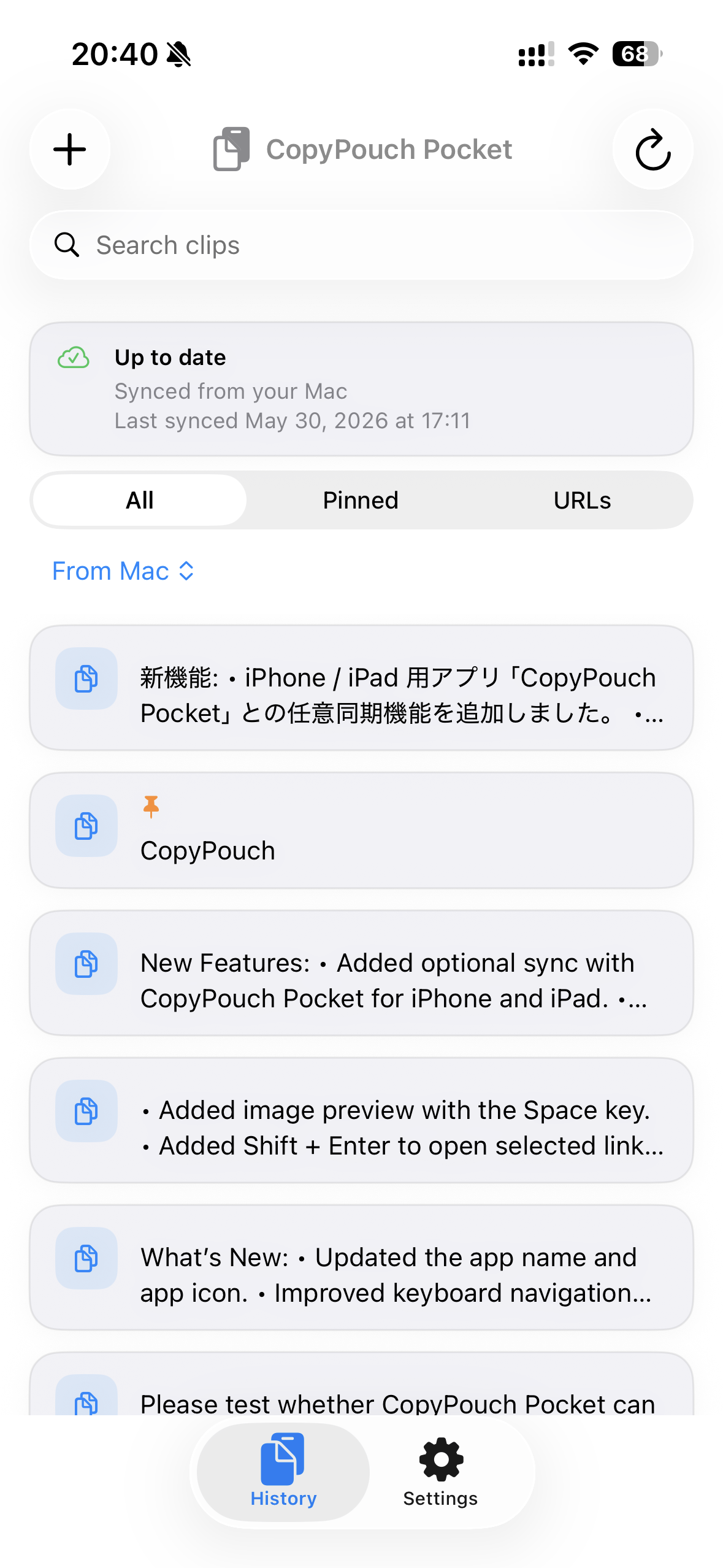
- Return to the main screen and update to load the latest synced text.
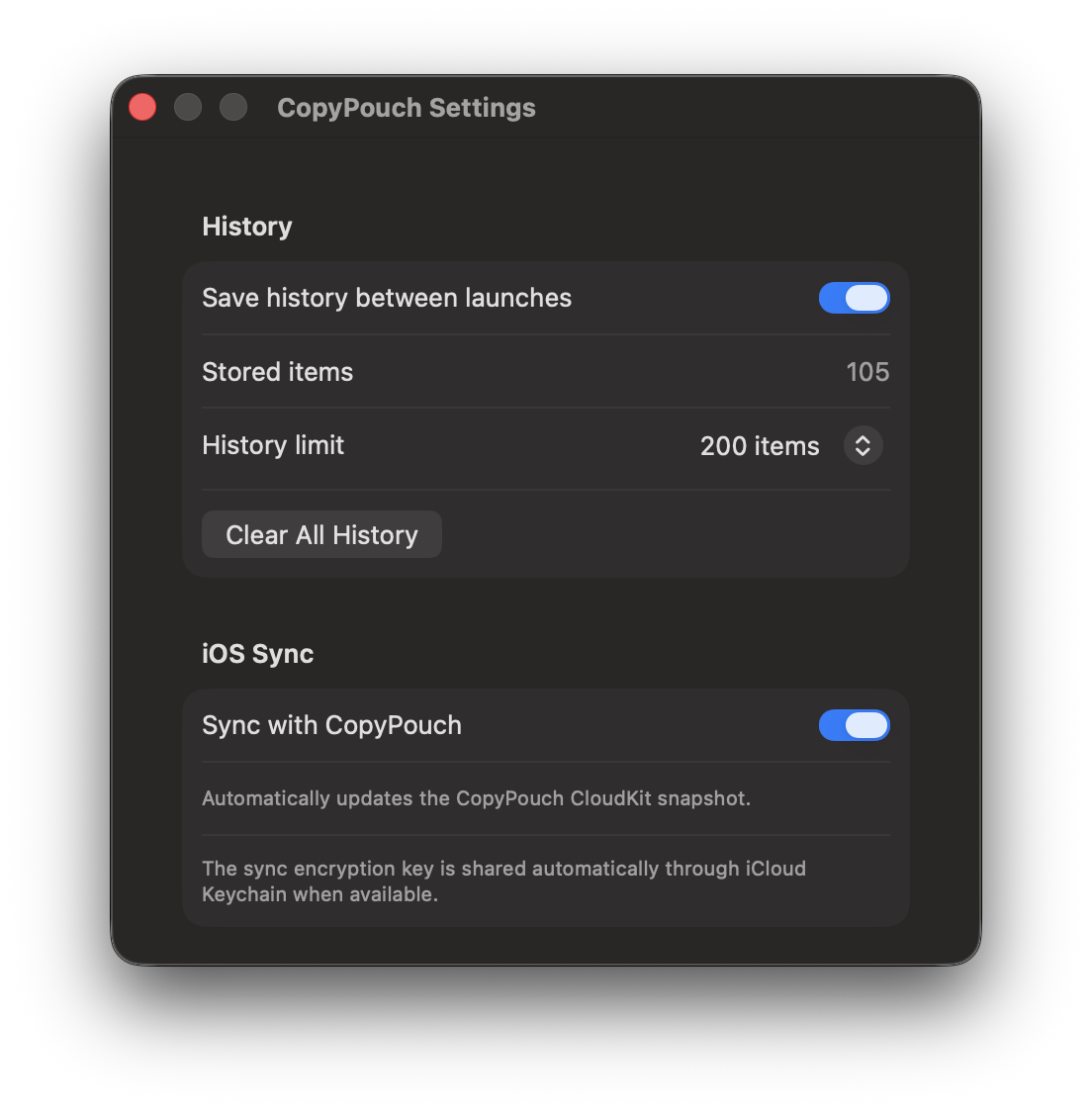
If you turn this switch off later, CopyPouch stops updating CopyPouch Pocket.
Main history view
- Tap a row to copy it immediately
- Use search to narrow down the visible list
- Switch between All, Pinned, and URLs
- Use Source to switch between All, Local, and From Mac
- Use pull-to-refresh or the toolbar update button to check for changes
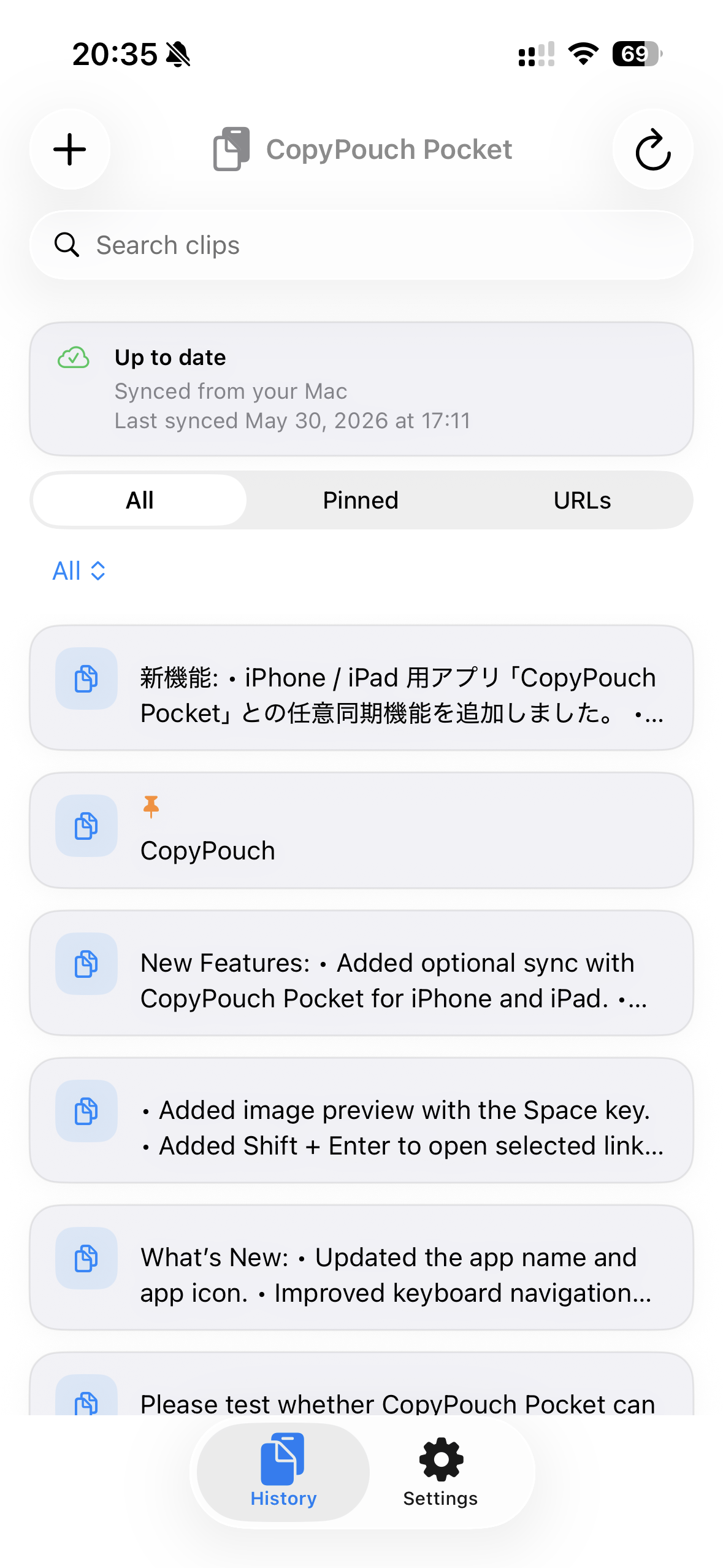
Search
Use the search bar to quickly filter local clips and history synced from your Mac.
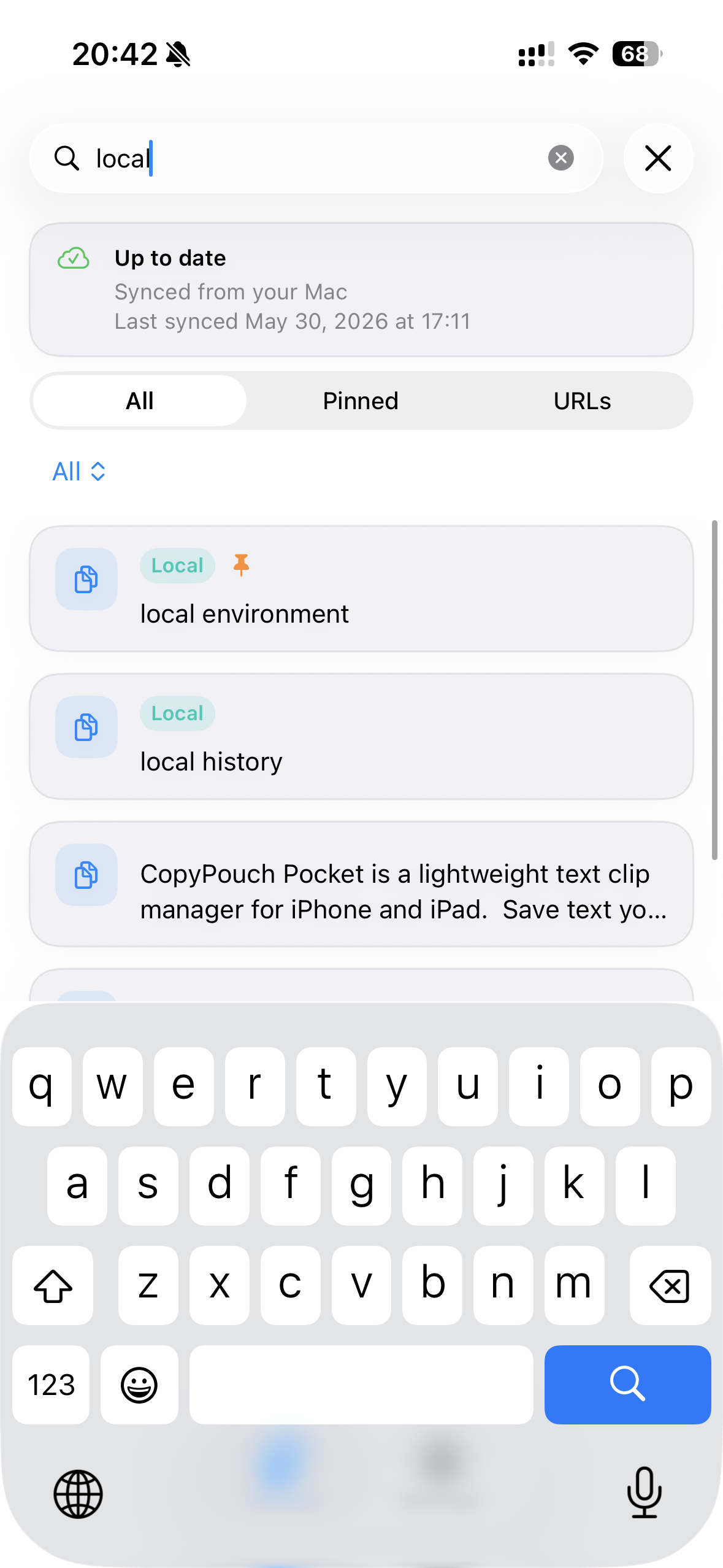
Switching sources
Choose All, Local, or From Mac under Source to change which history is shown.
What the sync status card means
- Up to date: the latest refresh succeeded
- Syncing: the app is checking for the latest history from your Mac
- Sync failed: the app could not load the latest synced history
- Sync key unavailable: the shared iCloud Keychain key has not arrived yet
Local clips can be saved and deleted on iPhone or iPad.
Pinning, deleting, and updating synced Mac history still happen in CopyPouch on your Mac.
Pinning, deleting, and updating synced Mac history still happen in CopyPouch on your Mac.
Settings overview
- Check whether a sync key is currently imported
- Check whether the shared sync key is available
- Review the current sync source and last sync time
- Delete all local clips saved on this device
- Open support and privacy information